
Setting Up CI/CD for a Turborepo Vite React App Using GitHub Actions
In the previous article, we Dockerized a Vite + React application inside a Turborepo.
In this blog, we will set up a complete CI/CD pipeline using GitHub Actions, Docker Hub, and AWS EC2.
We will cover:
- Continuous Integration (CI)
- Continuous Deployment (CD)
- Docker image building
- Docker Hub image publishing
- Automatic EC2 deployment
What is CI/CD?
Continuous Integration (CI)
CI stands for Continuous Integration.
In software development, CI is used to automatically verify whether newly pushed code introduces any issues into the project.
Common CI tasks include:
- linting
- formatting checks
- testing
- type checking
- builds
This helps catch problems early before code reaches production.
Continuous Deployment (CD)
CD stands for Continuous Deployment.
After CI succeeds, the application is automatically deployed to a server or cloud environment.
This removes the need for manual deployment steps.
CI/CD Providers
Different platforms provide CI/CD solutions, including:
- GitHub Actions
- GitLab CI/CD
- CircleCI
- Jenkins
- JetBrains TeamCity
In this tutorial, we will use GitHub Actions.
GitHub Actions Folder Structure
To use GitHub Actions, create a .github folder at the root of your repository.
Inside it, create a workflows directory.
Your project structure should look like this:
my-turborepo/├── .github/│ └── workflows/│ ├── ci.yml│ └── cd.yml├── apps/│ ├── web/│├── packages/├── package.json└── turbo.jsonThe
.github/workflowsdirectory name must match exactly.
Basic GitHub Actions Example
Before building the full CI/CD pipeline, let’s first understand a simple GitHub Actions workflow.
File:
.github/workflows/ci.ymlSample config:
name: CI Pipeline
on:  push:    branches: [main]
  pull_request:    branches: [main]
jobs:  build-and-test:    runs-on: ubuntu-latest
    steps:      - name: Checkout Source Code        uses: actions/checkout@v4
      - name: Install pnpm        uses: pnpm/action-setup@v3        with:          version: 9
      - name: Setup Node.js Environment        uses: actions/setup-node@v4        with:          node-version: 24.13.1          cache: "pnpm"
      - name: Install Dependencies        run: pnpm install --frozen-lockfile
      - name: Run Turborepo Pipeline (Lint)        run: pnpm turbo lint
Understanding the Workflow
Trigger Conditions
on:This defines when the workflow should run.
In this example, the workflow runs when:
- code is pushed to
main - a pull request targets
main
Jobs
jobs:The jobs section defines the tasks GitHub Actions should execute.
Checkout Source Code
uses: actions/checkout@v4This is an official GitHub Action that clones your repository into the GitHub runner machine.
Without this step, the workflow would not have access to your project files.
Install pnpm
uses: pnpm/action-setup@v3GitHub provides reusable actions so we do not need to manually install pnpm ourselves.
Setup Node.js
uses: actions/setup-node@v4This installs Node.js inside the runner environment.
The cache: "pnpm" option improves performance by caching pnpm dependencies.
Install Dependencies
pnpm install --frozen-lockfileThis installs dependencies while ensuring the lockfile remains unchanged.
Run Linting
pnpm turbo lintThis runs linting for the Turborepo workspace.
Activating CI
Once you push the .yml file to GitHub, the CI workflow automatically becomes active.
You can see workflow runs in:
GitHub Repository → Actions TabActual CI/CD Pipeline for Turborepo Used
Now let’s create a production-ready workflow for our Vite + React Turborepo application.
Create:
.github/workflows/ci.ymlCI/CD Workflow
name: CI
on: push: branches: [main]
pull_request:
env: FORCE_JAVASCRIPT_ACTIONS_TO_NODE24: true
jobs: lint: runs-on: ubuntu-latest
steps: - uses: actions/checkout@v4
- uses: ./.github/actions/setup
- run: pnpm turbo lint --filter=web
build: runs-on: ubuntu-latest needs: lint
steps: - uses: actions/checkout@v4
- uses: ./.github/actions/setup
- run: pnpm turbo build --filter=web
build-and-push: runs-on: ubuntu-latest needs: build
if: ${{ github.ref == 'refs/heads/main' }}
steps: - uses: actions/checkout@v4
- name: Login to DockerHub uses: docker/login-action@v3 with: username: ${{ secrets.DOCKERHUB_USERNAME }} password: ${{ secrets.DOCKERHUB_TOKEN }}
- name: Build image run: | docker build \ -t ${{ secrets.DOCKERHUB_USERNAME }}/turborepo-web:latest \ -f apps/web/Dockerfile .
- name: Push image run: | docker push ${{ secrets.DOCKERHUB_USERNAME }}/turborepo-web:latest
deploy: runs-on: ubuntu-latest needs: build-and-push
if: ${{ github.ref == 'refs/heads/main' }}
steps: - uses: actions/checkout@v4
- name: Create Target Directory on EC2 with: host: ${{ secrets.EC2_HOST }} username: ${{ secrets.EC2_USER }} key: ${{ secrets.EC2_SSH_KEY }} script: | mkdir -p /home/ubuntu/turborepo-ci
- name: Copy docker-compose.yml to EC2 with: host: ${{ secrets.EC2_HOST }} username: ${{ secrets.EC2_USER }} key: ${{ secrets.EC2_SSH_KEY }} source: "docker-compose.yml" target: "/home/ubuntu/turborepo-ci"
- name: Deploy on EC2 with: host: ${{ secrets.EC2_HOST }} username: ${{ secrets.EC2_USER }} key: ${{ secrets.EC2_SSH_KEY }} script: | cd /home/ubuntu/turborepo-ci
# Authenticate Docker to pull your private images if applicable # echo "${{ secrets.DOCKERHUB_TOKEN }}" | docker login -u "${{ secrets.DOCKERHUB_USERNAME }}" --password-stdin
docker compose pull docker compose up -dReusing Common Setup Steps
You may notice this step:
- uses: ./.github/actions/setupInstead of repeating setup steps in every job, we create a reusable composite action.
Create:
.github/actions/setup/action.ymlAdd the following:
name: Setup
runs:  using: "composite"
steps:  - uses: pnpm/action-setup@v4    with:      version: 8.15.6
  - uses: actions/setup-node@v4    with:      node-version: 24
  - run: pnpm install --frozen-lockfile    shell: bash
This keeps workflows cleaner and avoids duplication.
Workflow Order Using needs
needs: lintThis ensures jobs run sequentially.
Flow:
lint → build → build-and-push → deployIf any step fails, the next stage will not execute.
Preventing Deployments on Pull Requests
if: ${{ github.ref == 'refs/heads/main' }}This ensures deployment only happens after code is merged into the main branch.
Pull requests will still run linting and builds, but they will not deploy.
Docker Hub Authentication
In the build-and-push stage:
uses: docker/login-action@v3This logs into Docker Hub using GitHub repository secrets.
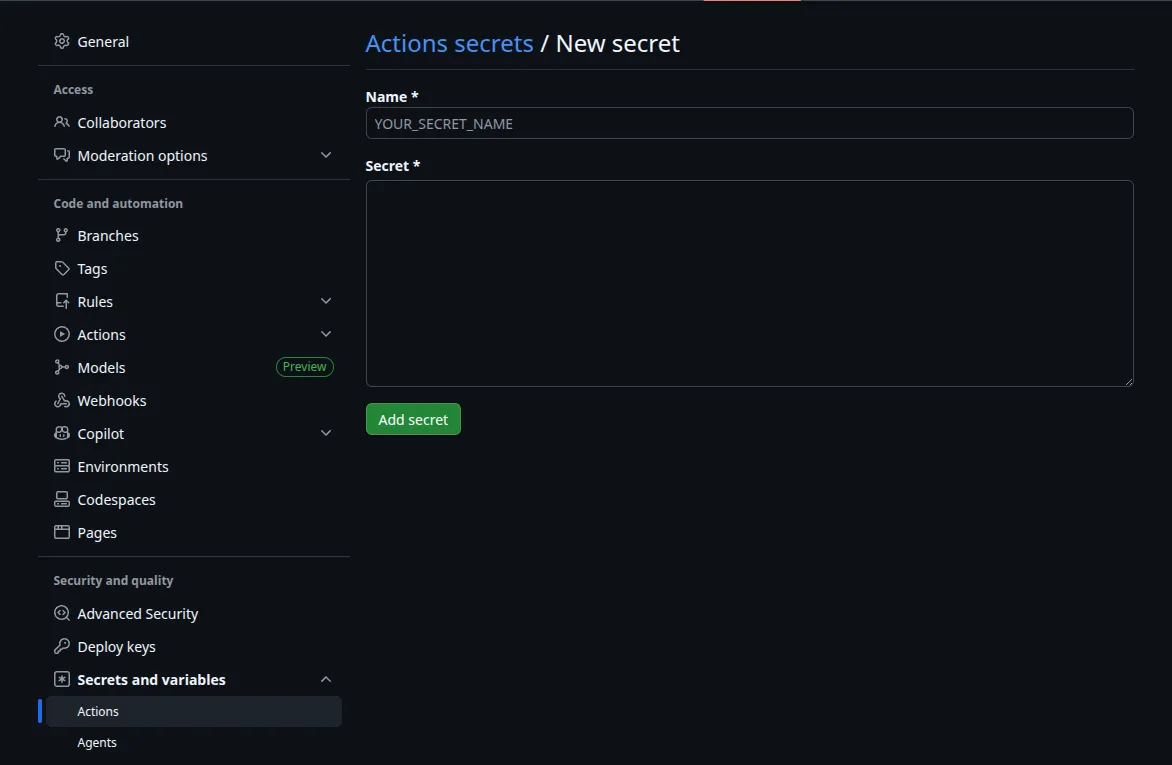
Adding GitHub Secrets
Go to:
Repository → Settings → Secrets and Variables → ActionsAdd the following secrets:
| Secret Name | Value |
|---|---|
DOCKERHUB_USERNAME | Your Docker Hub username |
DOCKERHUB_TOKEN | Docker Hub access token |
EC2_HOST | EC2 public IP |
EC2_USER | SSH user (ubuntu for Ubuntu AMIs) |
EC2_SSH_KEY | Contents of your .pem file |
Creating a Docker Hub Token
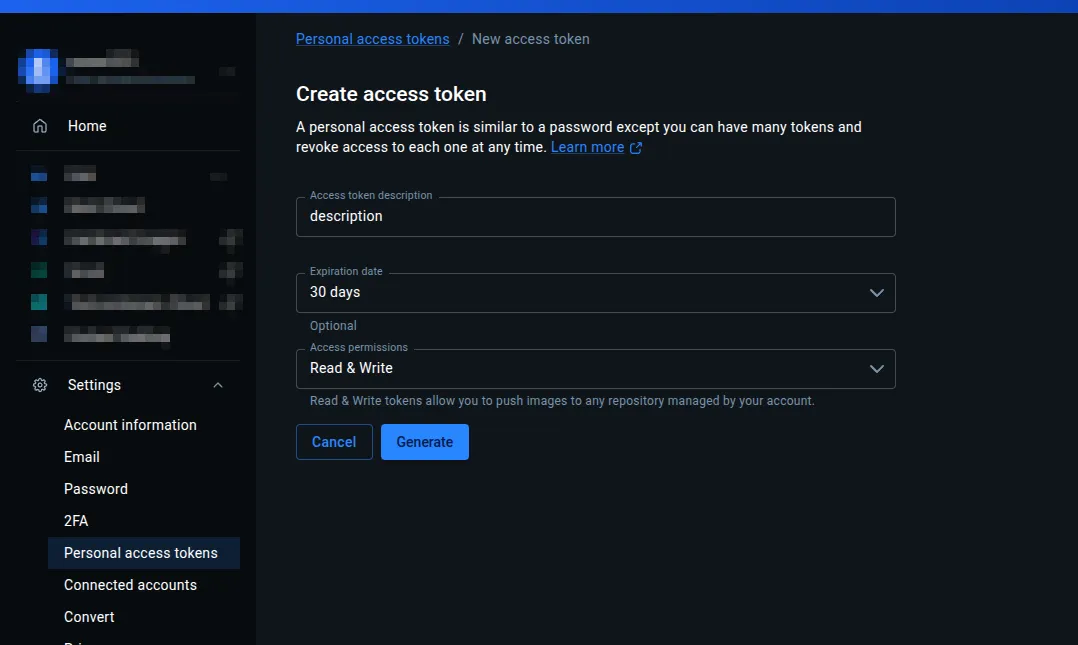
In Docker Hub:
Account Settings → Security → Access TokensCreate a new access token and add it to GitHub Secrets.
Setting Up AWS EC2
Create an EC2 instance using Ubuntu.
After creation:
- copy the public IP
- use
ubuntuas the SSH user - use the
.pemkey for SSH access
Installing Docker on EC2
Install Docker using Docker’s official repository.
Install Prerequisites
sudo apt updatesudo apt install -y ca-certificates curl gnupgAdd Docker GPG Key
sudo install -m 0755 -d /etc/apt/keyrings
curl -fsSL https://download.docker.com/linux/ubuntu/gpg | \sudo gpg --dearmor -o /etc/apt/keyrings/docker.gpg
sudo chmod a+r /etc/apt/keyrings/docker.gpg
Add Docker Repository
echo \"deb [arch=$(dpkg --print-architecture) signed-by=/etc/apt/keyrings/docker.gpg] \https://download.docker.com/linux/ubuntu \$(. /etc/os-release && echo $VERSION_CODENAME) stable" | \sudo tee /etc/apt/sources.list.d/docker.list > /dev/nullInstall Docker and Docker Compose
sudo apt update
sudo apt install -y \  docker-ce \  docker-ce-cli \  containerd.io \  docker-buildx-plugin \  docker-compose-plugin
Adding ubuntu user in docker group
This adds ubuntu user in docker group else docker commands won’t work.
sudo usermod -aG docker ubuntunewgrp dockerSecurity Group
Note: Also check and make sure security group in EC2(Inbound rules) allows the port you are trying to run your application on.Docker Compose File
Create a docker-compose.yml file in the root of your repository:
version: "3"
services:  web:    container_name: web
    image: roman325/turborepo-web:latest
    restart: unless-stopped
    ports:      - "3000:80"
This file:
- pulls the Docker image from Docker Hub
- runs the container
- exposes port
3000
Complete Deployment Flow
The complete pipeline works like this:
1. Push code to GitHub2. GitHub Actions starts CI3. Run lint checks4. Build the application5. Build Docker image6. Push image to Docker Hub7. SSH into EC28. Pull latest Docker image9. Restart containers using Docker ComposeConclusion
We successfully created a complete CI/CD pipeline for a Turborepo Vite React application using:
- GitHub Actions
- Docker
- Docker Hub
- AWS EC2
- Docker Compose
This setup provides:
- automated testing and validation
- automatic Docker image publishing
- automatic deployments
- reproducible infrastructure